Introduction
Misplacing your Toshiba TV remote doesn’t mean you’re stuck without control over your TV settings. With a few creative approaches, namely utilizing physical buttons, smartphone apps, or universal remotes, you can effortlessly navigate your Toshiba TV menu. This guide explores these methods to ensure you maintain full access to your TV’s functionalities.
Understanding Toshiba TV Controls
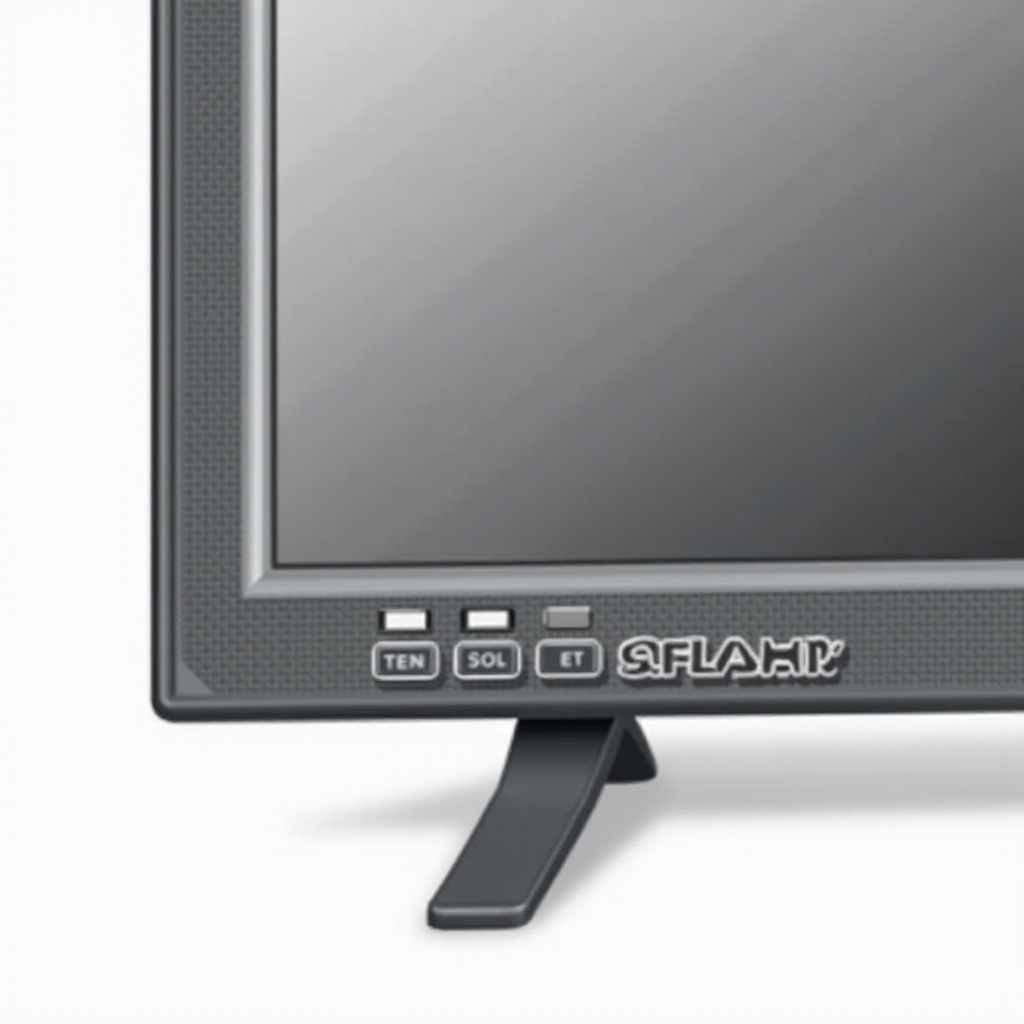
Toshiba TVs come equipped with self-contained control systems, featuring physical buttons generally positioned on the bottom, side, or back of the unit. These buttons are labeled for power, volume, channels, and menu access, though arrangements can vary slightly across different Toshiba models.
Familiarizing yourself with the button layout on your particular model serves as a crucial first step. Model-specific diagrams are often found in the TV’s manual or through a quick online search, enabling you to master these manual controls.
Using Physical Buttons to Navigate the Menu
Once you’ve identified the buttons on your Toshiba TV, you can start utilizing them to access the main menu. Here’s a streamlined approach:
- Power On the TV: Use the power button to turn the TV on.
- Open the Menu: Press the ‘Menu’ button to bring up the main settings menu.
- Navigate the Options: Use the ‘Volume’ buttons to move up or down within the menu.
- Select and Adjust Settings: Choose desired options by holding the ‘Menu’ button or pressing a dedicated ‘Select’ button if present.
- Confirm Changes: Follow similar button presses to confirm changes and manage settings.
This button navigation method allows access to essential settings, ensuring you can perform necessary adjustments even without a remote.
Smartphone Applications as an Alternative
Beyond physical buttons, smartphones offer a modern solution for controlling your TV. Numerous applications are available for download that convert your smartphone into a remote:
- Download a Compatible App: Install apps such as the Toshiba Remote App, Toshiba SmartRemote, or other third-party applications like AnyMote.
- Pair the App with Your TV: Ensure both your TV and smartphone share the same Wi-Fi network. Open the app and follow the setup instructions to connect.
- Using the App: Utilize the app’s interface for menu navigation, channel changes, and volume control, essentially replicating the remote’s functions.
Switching from button controls to a smartphone app expands your control possibilities beyond physical limitations, offering ease of use and increased functionality.
Employing Universal Remotes and Other Devices
If you’re inclined towards a tangible remote, universal remotes present an all-encompassing alternative. These remotes are designed for compatibility with a broad range of TV brands, including Toshiba:
- Selecting a Universal Remote: Choose a remote noted for its compatibility with Toshiba products. Brands like Logitech Harmony and RCA provide trustworthy options.
- Program the Remote: Follow the manufacturer’s instructions to program the remote with your TV, usually by entering specific codes.
- Test Functionality: Once programmed, use the remote to perform functions like menu navigation and settings adjustments, verifying its effectiveness.
Universal remotes restore the full spectrum of TV controls, eliminating the dependency on a missing or malfunctioning original remote.
Troubleshooting Common Issues
Despite employing these methods, issues may occasionally arise. Here’s how to handle them effectively:
- Unresponsive Physical Buttons: Check the power connection, inspect buttons for wear, and ensure you use the correct button identifications.
- App Connectivity Problems: Confirm your TV and phone are on the same network, restarting devices as needed if inconsistencies persist.
- Universal Remote Programming Errors: Validate programming steps, use the correct TV codes, and replace any weak batteries.
By adhering to these troubleshooting tips, you maintain uninterrupted access and control over your Toshiba TV.
Conclusion
While losing your remote might initially seem problematic, a suite of alternative methods exist for commanding your Toshiba TV. By mastering physical buttons, leveraging smartphone apps, or employing universal remotes, you sustain uninhibited control over your TV settings and enhance your viewing experience.
Frequently Asked Questions
How do I reset my Toshiba TV without a remote?
To reset without a remote, use the ‘Menu’ button to navigate to settings and select ‘System Reset.’ Alternatively, unplug the TV for several minutes.
Can I access advanced settings with buttons only?
Yes, though accessing via buttons can be cumbersome. Using a smartphone app or universal remote is often more efficient for advanced settings.
What should I do if none of the methods work?
If all else fails, contact Toshiba support or consider buying a replacement or universal remote to restore full functionality.