Introduction
Turtle Beach headphones are a favorite among gamers due to their excellent sound quality and features. Whether you are a new user or just want to ensure a solid connection between these headphones and your PC, this guide will provide you with all the necessary steps. Dive into our detailed instructions to improve your gaming and audio experience effortlessly.
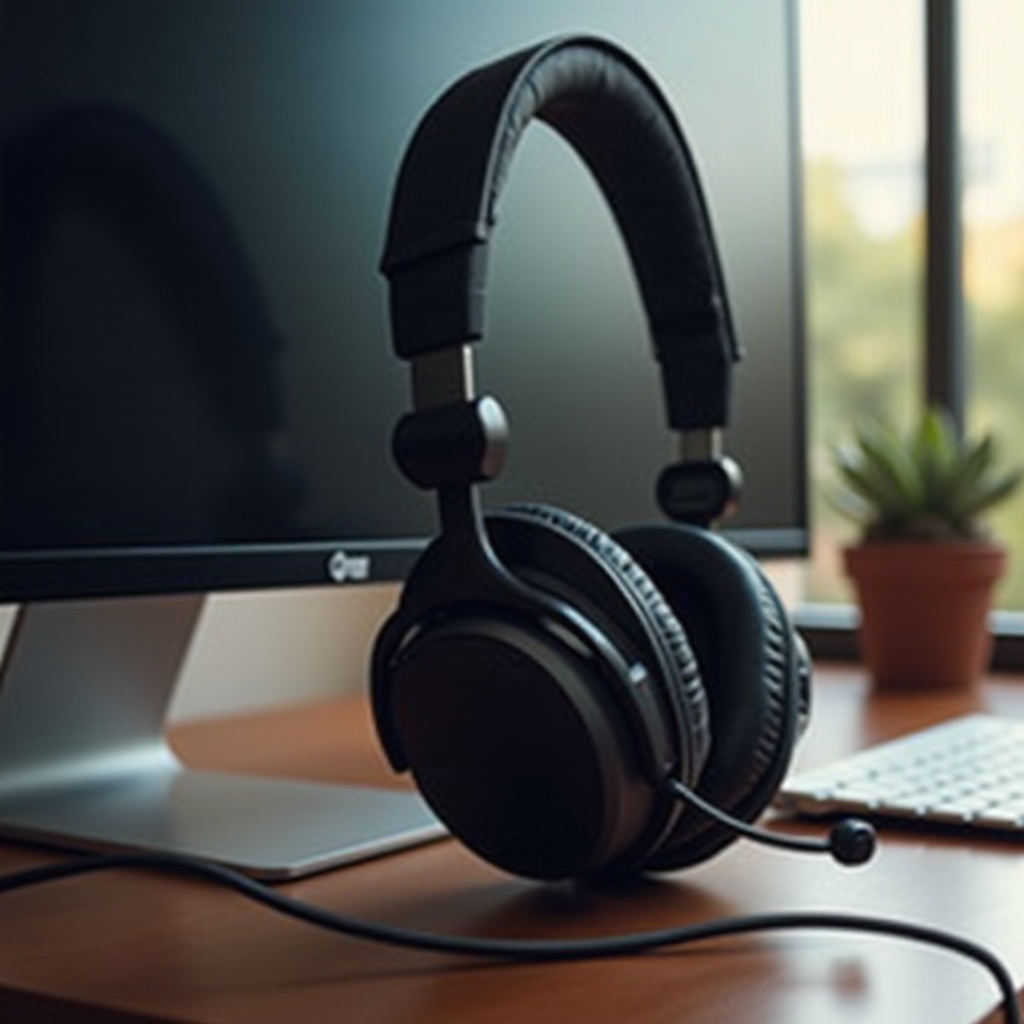
Understanding Turtle Beach Headphones
Before connecting your headphones, it’s crucial to understand what they offer. Turtle Beach headphones come with various features that are perfect for PC users.
- Overview of Popular Models: Models like the Stealth, Recon, and Elite series are often used with PCs, each offering specific features tailored to gamers.
- Key Features That Enhance PC Experience: Their noise cancellation, surround sound, and custom audio profiles make these headphones a top choice for gamers seeking an immersive experience.
Having a good grasp of these features sets the stage for a successful setup, so let’s move on to the connection process.
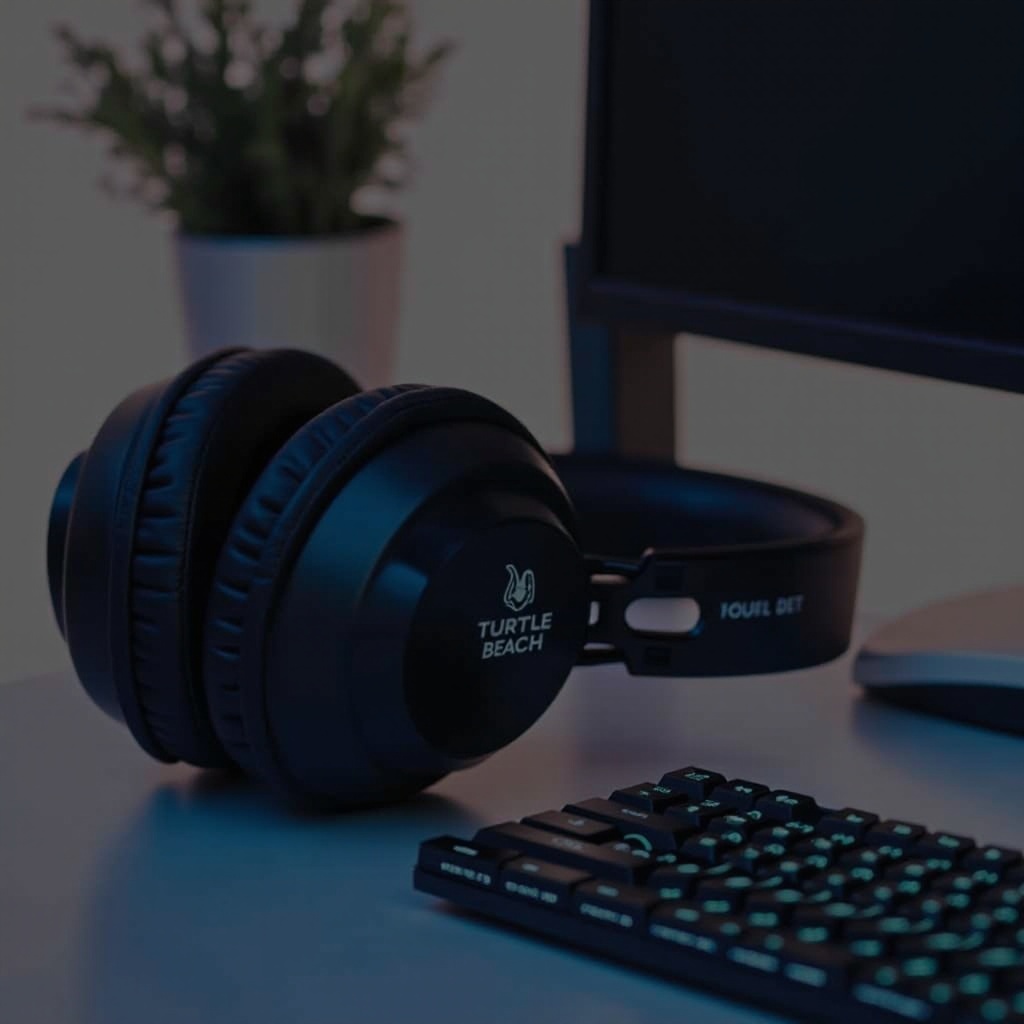
Step-by-Step Guide to Connect Turtle Beach Headphones to a PC
Connecting Turtle Beach headphones is relatively simple, but doing it right increases performance and satisfaction.
- Using Wired Connections:
- Locate the appropriate audio jack on your PC, usually indicated by a green color.
- Plug in the audio cable from your headphones to this jack.
-
In your PC’s audio settings, select the headphones as the default playback and recording device.
-
Setting Up Bluetooth for Wireless Models:
- Activate Bluetooth on your PC through the ‘Devices’ section in settings.
- Turn on the headphones and initiate pairing mode as instructed in the manual.
-
Select ‘Add Bluetooth or other device’ on your PC and choose the headphones from available devices.
-
Ensuring Compatibility with Your PC: Check if your headphone model and PC are compatible and ensure all drivers are updated to prevent issues and maximize performance.
This guide should get your headphones connected without a hitch. However, technical issues can arise, which we address in the next section.
Troubleshooting Common Connection Issues
Despite best efforts, connection issues can occur; these tips can help solve them effectively.
- Resolving No Sound or Poor Audio Quality:
- Confirm that both the PC and headset volumes are set appropriately.
-
Recheck the audio cable or Bluetooth connection for stability.
-
Bluetooth Pairing Problems and Solutions:
- Restart both the headphones and PC to renew the connection.
-
Remove the headphones from the Bluetooth list on your PC and pair them again.
-
Importance of Updating Audio Drivers: Keeping audio drivers up-to-date is crucial for sustained performance. Regularly check for updates via Windows Update or the manufacturer’s website.
Once you’re confident in the connection, it’s time to optimize the audio for the best experience.
Tips for Optimizing Your Audio Experience on PC
Maximizing the features of your Turtle Beach headphones can significantly enhance your PC usage.
- Adjusting Sound Settings in Windows: Use sound enhancements within Windows to tailor the audio output to your preference for richer sound.
- Utilizing Surround Sound Features: Activate built-in surround sound through your headphones’ software to deepen the listening experience.
These optimizations will ensure that you extract the most from your headphones, allowing for more immersive gaming and media consumption.
Conclusion
Equipped with these instructions, you can now connect and optimize your Turtle Beach headphones with ease. Enjoy a seamless audio experience that will elevate your gaming and multimedia activities to new heights.
Frequently Asked Questions
Can all Turtle Beach headphones connect wirelessly to a PC?
Not all models support Bluetooth. Check the specifications of your model to confirm wireless compatibility.
What should I do if my PC doesn’t recognize my Turtle Beach headphones?
Ensure all drivers are updated, the headphones are in pairing mode, and connections are secure before contacting support.
How can I enhance the audio quality of my Turtle Beach headphones on a PC?
Use the manufacturer’s software for adjustments and confirm your sound drivers are updated for the best performance.