Introduction
The iPhone power button is essential for controlling your phone, from powering it on or off to taking screenshots. When it stops working, it can be incredibly inconvenient. Thankfully, addressing this issue is often straightforward. This guide provides a detailed approach to diagnose and fix the iPhone power button problem, ranging from simple checks to advanced repairs.
Common Causes of iPhone Power Button Issues
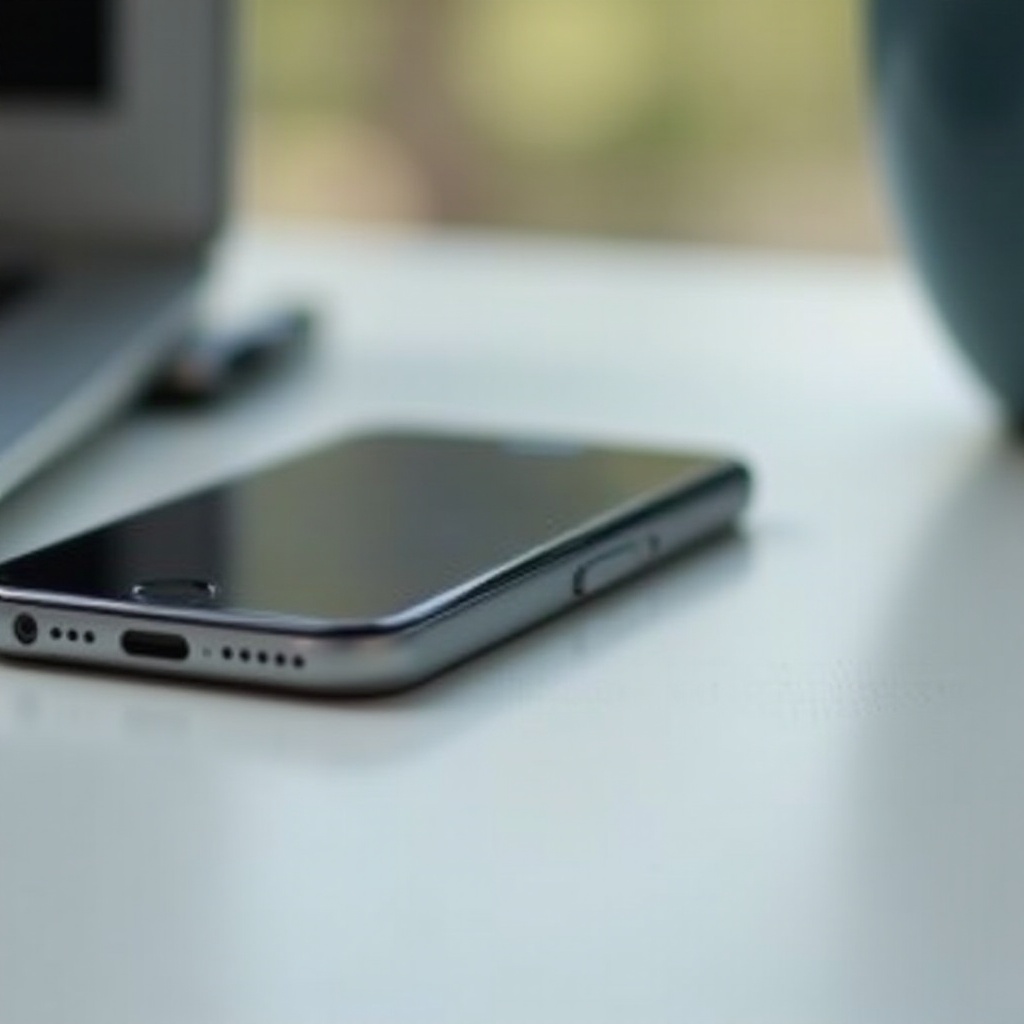
Several factors might cause your iPhone power button to malfunction. Physical damage from drops or impacts is a frequent culprit. Software glitches can also interfere with button functionality, as can dirt and grime accumulation around the button, causing it to stick or become unresponsive. By identifying the potential causes, you can better understand the problem and choose an appropriate solution.
Preliminary Checks to Diagnose the Problem
Before diving into complicated solutions, start with some basic checks:
-
Inspecting Physical Condition: Look for any visible damage or misalignment around the button area. Make sure that there’s no dirt or debris lodged around it which might impede its function.
-
Checking for Software Updates: Visit ‘Settings’ > ‘General’ > ‘Software Update.’ An outdated operating system can sometimes cause the button to malfunction, so it’s crucial to keep your iOS updated.
By performing these preliminary checks, we prepare to tackle more technical solutions if necessary.

Step-by-Step Troubleshooting Techniques
After ruling out preliminary issues, try these troubleshooting steps:
-
Performing a Soft Reset: If your iPhone is stuck, try a soft reset. For older models, press and hold the ‘Home’ and ‘Power’ buttons until the Apple logo appears. For iPhone X and later, press and quickly release the ‘Volume Up’ button, then the ‘Volume Down’ button, and then hold the ‘Side’ button until you see the Apple logo.
-
Enabling AssistiveTouch for Temporary Use: Navigate to ‘Settings’ > ‘Accessibility’ > ‘Touch’ > ‘AssistiveTouch’ and toggle it on. This on-screen button provides an alternative way to lock your phone and perform other tasks normally done via the physical button.
-
Resetting iPhone to Factory Settings: Should the soft restore fail, a factory reset might do the trick. Backup your data first, then go to ‘Settings’ > ‘General’ > ‘Reset’ > ‘Erase All Content and Settings.
These steps often fix minor software-related issues by refreshing your iPhone’s system.
Advanced Fixes for Persistent Issues
If your power button issues persist after trying basic troubleshooting techniques, you may need to move on to more advanced solutions:
-
Use of DFU Mode Restore: Device Firmware Update (DFU) mode offers a more comprehensive solution by allowing you to reinstall the firmware on your device. This is ideal for hidden software issues that regular restores can’t fix.
-
Restoring in Recovery Mode: Connect your iPhone to a computer and open iTunes or Finder. Next, force restart your phone and let it enter recovery mode. Follow the on-screen prompts to restore your device.
These methodologies address deeper software problems and are often effective where basic restoration isn’t.
Hardware Solutions for DIY Enthusiasts
If software solutions do not resolve the button issue, it might be time to consider a hardware solution. This route is for those confident with technical repairs:
-
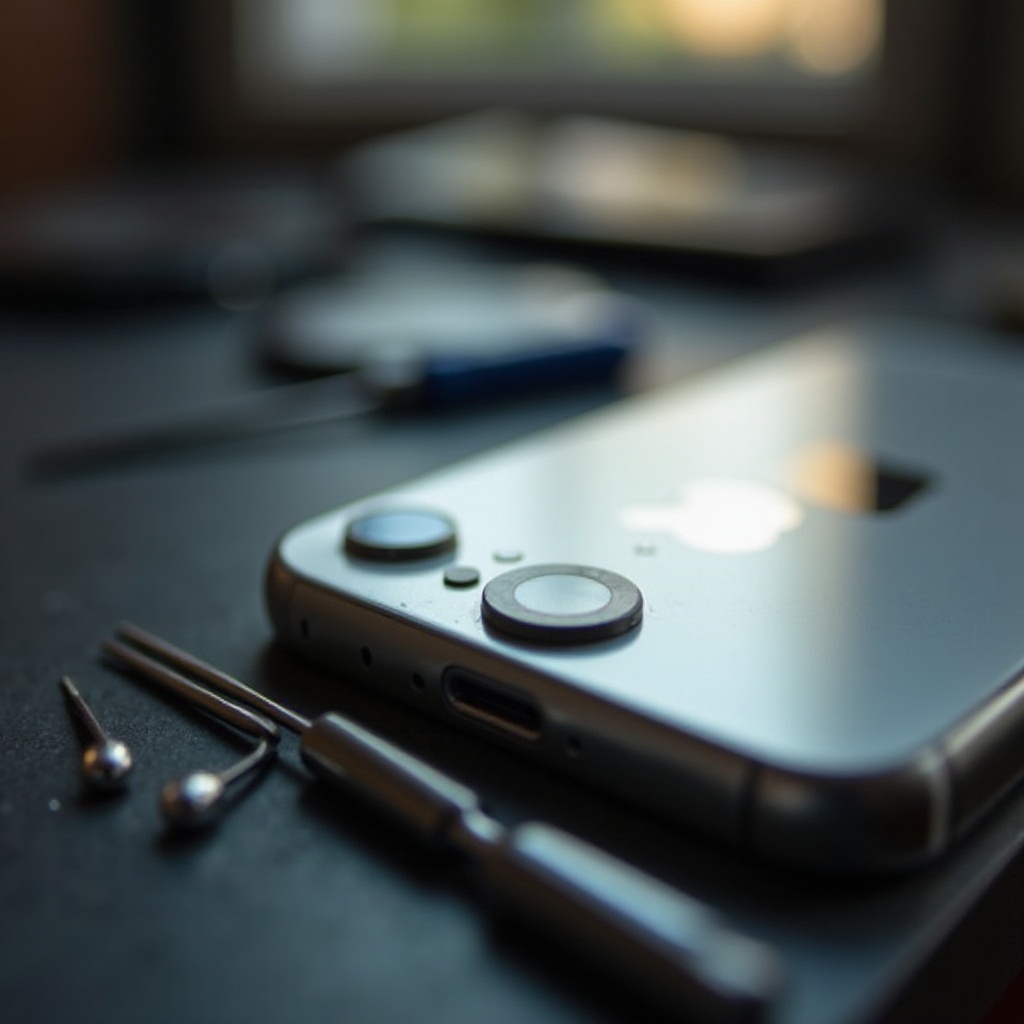
Tools Required for Disassembly: Before proceeding, ensure you have a pentalobe screwdriver, opening picks, and a suction handle.
-
Precautions and Step-by-step Guide for Replacement: Conduct repairs in a static-free environment and disconnect the battery to prevent electrical damage. Carefully open the iPhone casing, remove the damaged button components, and replace them with new parts, ensuring proper alignment and connection before closing everything back up.
These steps are for tech-savvy users. Always proceed cautiously to avoid causing further damage.
When to Seek Professional Repair Services
When all attempted fixes fail, seeking professional help might be necessary. Consider these factors:
-
Determining Cost-Efficiency: Evaluate the cost of repair against the potential expense of purchasing a new device. Sometimes, the cost of professional repair may outweigh the price of upgrading, depending on the model and its condition.
-
Evaluating Authorized Service Options: Always opt for certified repair services like the Apple Store or authorized service centers. Unauthorized repairs might void warranties or lead to further damage.
Professional services ensure in-depth solutions handled by experts, improving repair reliability.
Conclusion
Fixing an iPhone power button ranges from simple updates and resettings to more sophisticated software and hardware solutions. By following these steps, you can solve the problem or, if necessary, confidently consult a professional. Remember that maintaining your phone’s software and handling your device with care can prevent future issues.
Frequently Asked Questions
How do I know if my iPhone power button needs replacing?
If the power button is unresponsive or requires excessive force despite software fixes, replacing it may be necessary.
Can software issues cause power button failure?
Yes, software glitches and outdated iOS versions can affect the button’s responsiveness. Updating your system or resetting settings may resolve these issues.
Is it safe to fix my iPhone power button myself?
If you have the necessary tools and technical skills, DIY repairs can be safe. However, it’s often best to consult professionals if unsure.