Introduction
Experiencing a green tint on your Samsung TV can disrupt your viewing pleasure, turning a relaxing evening into a frustrating ordeal. Whether it’s movie night or catching up on your favorite show, a green screen is a common annoyance. Understanding the causes and solutions can help restore your TV’s normal display quickly. This guide walks you through effective troubleshooting steps and preventive measures to keep this problem at bay.
Understanding the Green Screen Issue
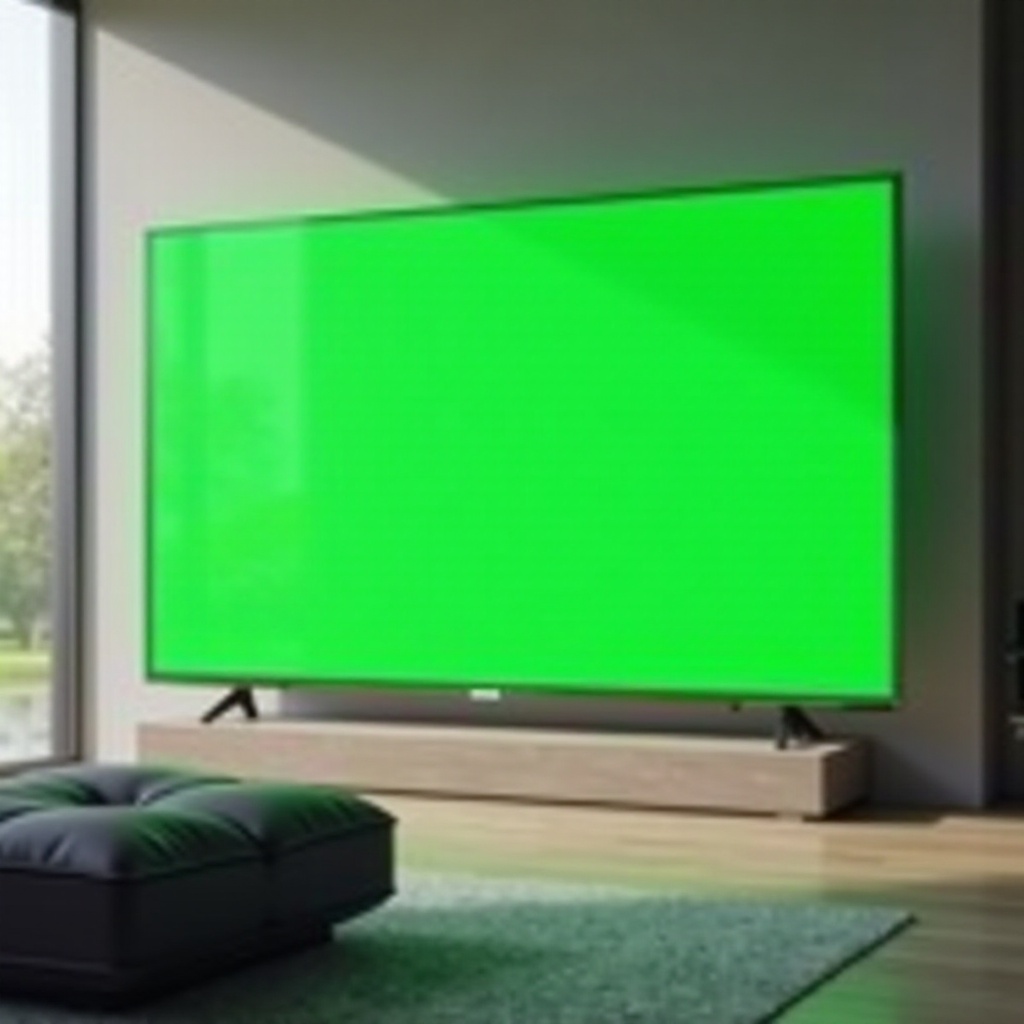
Knowing the underlying reasons for a green screen is essential to fixing it. For Samsung TVs, typical causes include:
- Common Causes of a Green Screen: Poor HDMI connections or incorrect picture settings often result in display problems. Software glitches or outdated firmware could also play a part.
- Differentiating Hardware and Software Problems: Identifying whether the cause is hardware-related, like a malfunctioning screen component, or software-related, such as setting errors, can make it easier to find the right solution.
With this foundation, we can move on to initial troubleshooting steps to resolve minor issues.
Initial Troubleshooting Steps
Addressing a green screen issue often begins with simple but vital steps:
-
Check and Adjust TV Settings: Access your TV’s menu to adjust picture settings like color temperature and contrast. Also, ensure that the input source is correctly set.
-
Update Firmware: Firmware updates can fix bugs and refresh your TV’s performance. Go to the settings and look for software updates to ensure your TV runs the latest version.
These troubleshooting steps can solve many minor display issues. If the green tint persists, examining your TV’s connections and external devices is the next logical step.
Inspecting Connections and External Devices
Proper connections are crucial for optimal screen performance:
-
Verifying Cable Connections: Disconnect and securely reconnect all HDMI cables, as loose connections often cause display problems.
-
Importance of Using Certified Cables: High-quality, certified cables prevent data transmission errors, which can manifest as screen issues.
If you have verified and corrected cable connections but still face issues, more advanced troubleshooting steps might be required.
Advanced Troubleshooting Techniques
For persistent problems, the following steps provide more advanced solutions:
-
Factory Resetting Your Samsung TV: Resetting your TV to its original factory settings can resolve persistent issues. Be cautious as this will erase all custom settings; access this option through your TV’s settings menu.
-
Exploring Hardware Solutions: If software fixes fail, the problem could be hardware-related. In such cases, professional assessment is advisable, especially if there’s physical damage.
When even advanced techniques can’t fix the problem, professional assistance is recommended.
When to Seek Professional Assistance
Knowing when to seek expert help is crucial. Here’s when you should consider it:
-
Indicators of Requiring Professional Help: If there’s visible hardware damage or persistent issues despite troubleshooting efforts, it’s best to consult a professional.
-
Accessing Samsung Customer Support: Samsung provides reliable customer support to help diagnose and resolve complex issues, which may require a visit to their service center or remote assistance.
Alongside fixing the problem, preventative measures ensure lasting performance and fewer future disruptions.
Preventative Measures to Avoid Future Issues
Keeping your Samsung TV in excellent condition involves regular maintenance:
-
Regular TV Maintenance: Clean and ensure proper ventilation to avoid overheating. Regularly check and tighten cable connections to prevent future issues.
-
Recommended TV Settings for Optimal Performance: Periodically, review picture and sound settings to maintain optimal quality. Ensuring these settings are correctly configured reduces the likelihood of screen issues.
Consistent maintenance not only prevents potential display issues but also enhances your viewing experience.
Conclusion
Addressing and preventing a green screen on your Samsung TV involves a combination of understanding the root causes, conducting thorough troubleshooting, and ensuring regular maintenance. By employing the discussed strategies, you can restore your TV’s vibrant display and prevent future occurrences, ensuring uninterrupted entertainment.
Frequently Asked Questions
What is causing the green tint on my Samsung TV screen?
Multiple factors like faulty cable connections, incorrect settings, or software issues can contribute to a green screen.
Can a firmware update fix the green screen problem?
Yes, updating to the latest firmware can resolve software-related green screen issues by addressing bugs.
How do I contact Samsung support for screen issues?
Visit the Samsung website or call their customer service hotline for support with persistent screen problems.