Introduction
Connecting your PC to your TV via HDMI allows for a versatile home entertainment setup. However, you might encounter a common issue: sound not outputting on TV connected to PC. This problem can be both frustrating and challenging to resolve if you don’t know where to start. Various factors could contribute to this issue, ranging from improper settings on your PC to connectivity problems or even incorrect TV configurations.
Here, we’ll walk you through the steps you need to take to diagnose and fix the problem, ensuring that you have a seamless audio and video experience. Let’s dive straight in to troubleshoot your sound issues effectively.
Preliminary Checks and Basic Settings
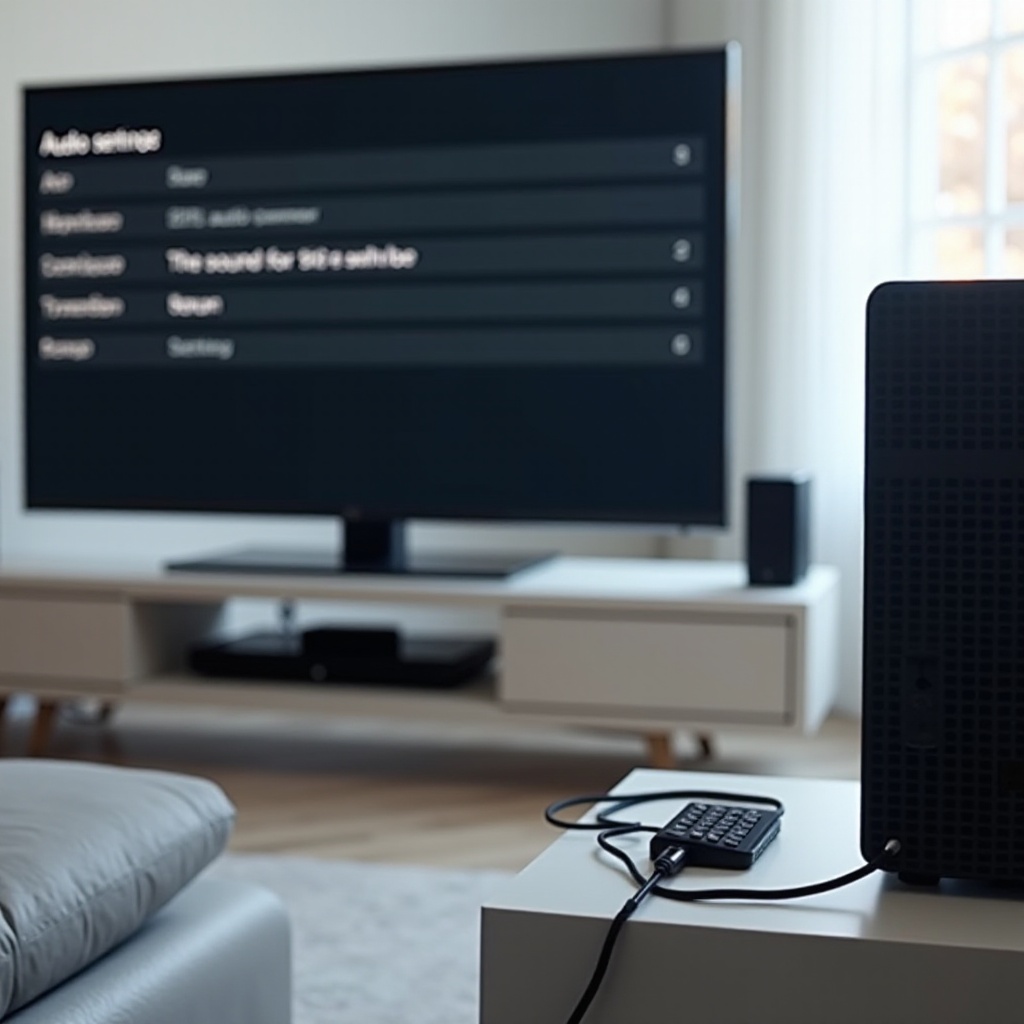
Before jumping to advanced fixes, it’s crucial to perform some preliminary checks and basic settings adjustments to ensure the audio issue isn’t due to minor oversights.
- Check Physical Connections: Ensure that the HDMI cable is securely connected to both your PC and TV. Loose connections can cause both video and audio issues.
- Volume Settings: Sometimes the solution is simple. Make sure the volume is not muted on both your PC and TV. Also, make sure the volume levels are sufficiently high on both devices.
- HDMI Ports: Use a different HDMI port on your TV to see if the problem persists. Some ports may not support audio output.
These basic steps will eliminate simple causes, allowing you to focus on more specific troubleshooting. By performing preliminary checks, you ensure that the issue is not due to easily fixable oversights.
Configuring Audio Devices on Your PC
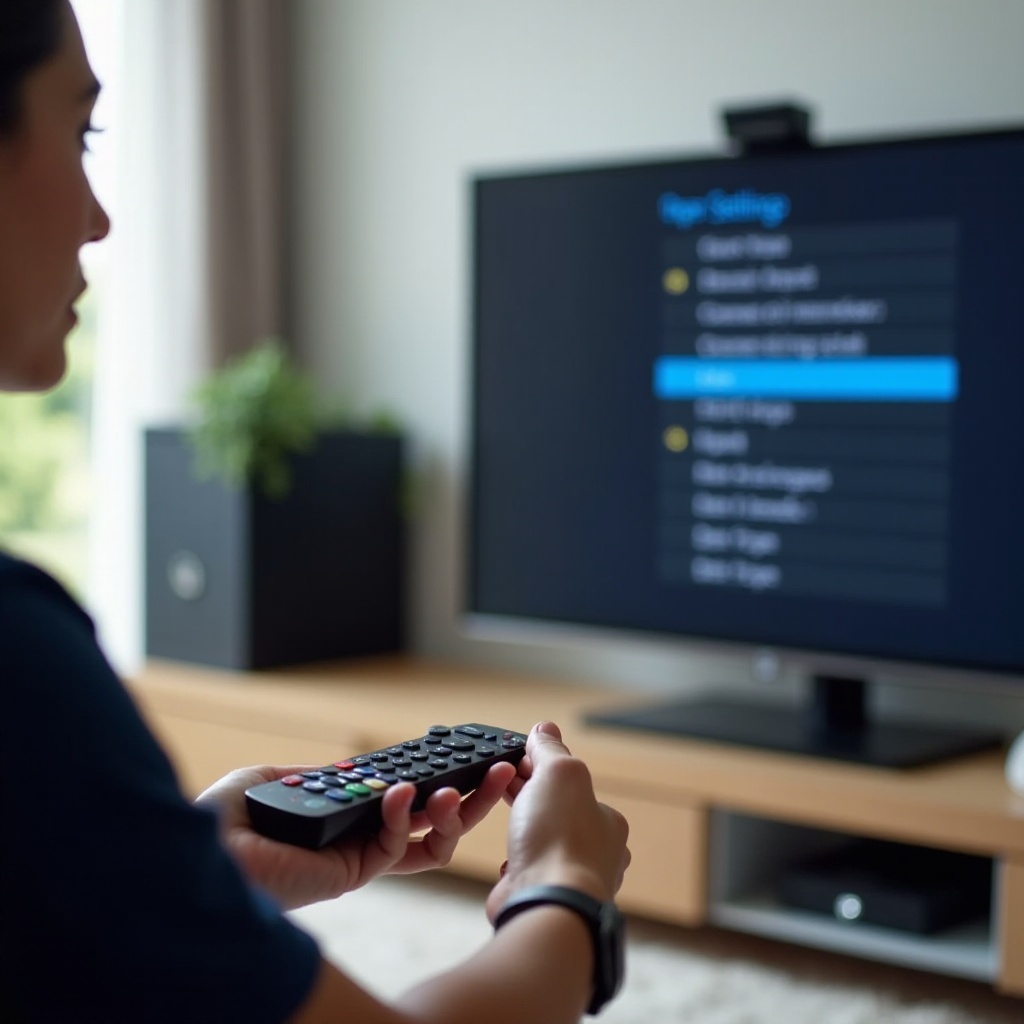
If initial checks didn’t resolve the issue, the next step involves configuring your PC’s audio settings. Proper configuration ensures that audio signals are transmitted correctly from your PC to your TV.
Setting TV as Default Playback Device
- Right-click on the Speaker Icon: located at the bottom-right corner of your screen.
- Select ‘Playback Devices’: This brings up the Sound settings window.
- Find Your TV: Under the ‘Playback’ tab, find the name of your TV.
- Set as Default Device: Right-click on your TV and select ‘Set as Default Device’. Click ‘OK’ to apply the changes.
Updating and Reinstalling Audio Drivers
Outdated or corrupted drivers can often be the cause of audio issues.
- Open Device Manager: You can do this by typing ‘Device Manager’ in the search bar.
- Locate ‘Sound, video and game controllers’: Expand this section.
- Right-click on your Audio Device: Select ‘Update driver’ and follow the prompts.
- Reinstall Drivers If Necessary: If updating doesn’t work, right-click and select ‘Uninstall’. Restart your PC, and Windows should automatically reinstall the drivers.
Enabling HDMI Audio Output in Sound Settings
- Go to Sound Settings: Navigate to ‘Settings’ > ‘System’ > ‘Sound’.
- Manage Sound Devices: Under ‘Output’, ensure that your TV (via HDMI) is set as the output device.
- Advanced Sound Options: Scroll down to ‘Advanced sound options’ and make sure all necessary applications are routed to play audio through your TV.
By making these adjustments, you’ll ensure that your PC is properly configured to output sound through the HDMI-connected TV.
Adjusting TV Settings for Audio Output
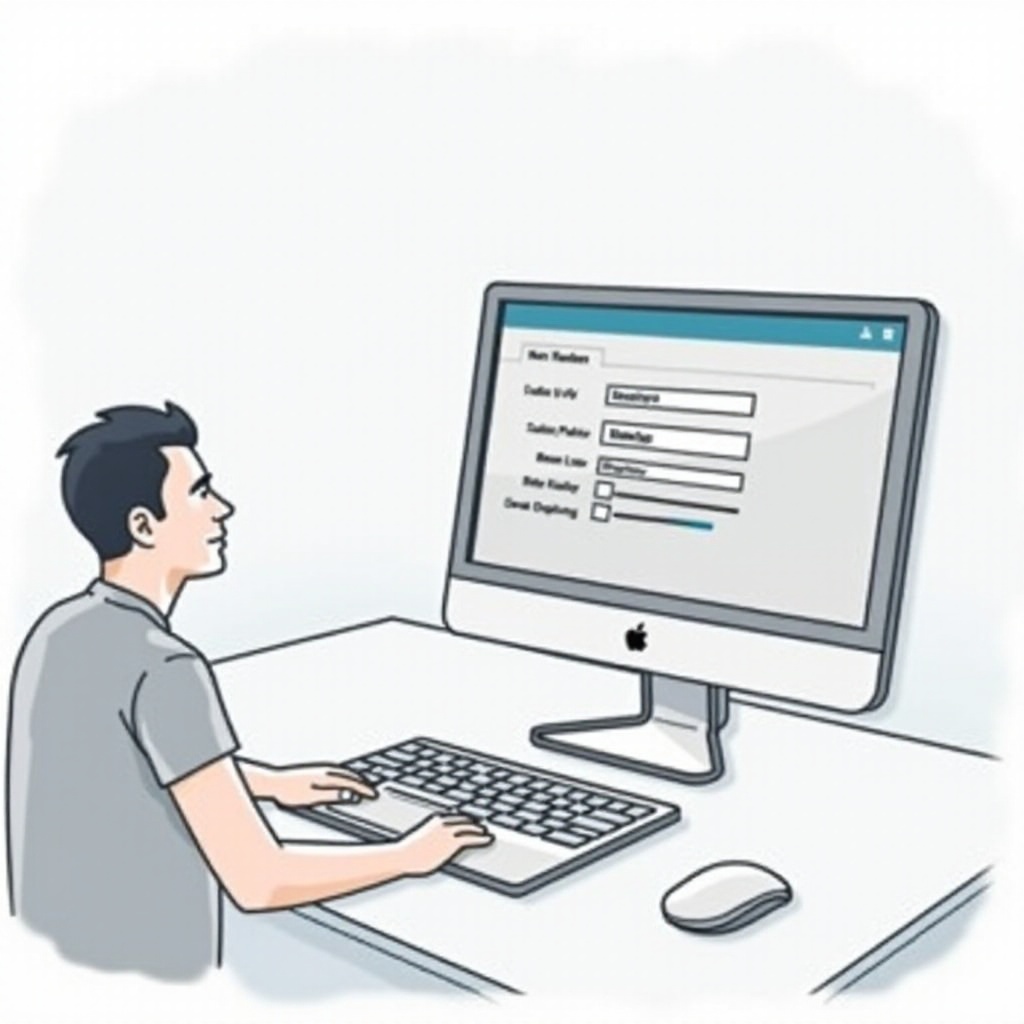
After configuring your PC, it might be necessary to tweak some settings on your TV to enable proper audio output.
Using Correct HDMI Port
Ensure that the HDMI port you are using on the TV supports both audio and video. This information is usually available in your TV’s user manual. Some TVs have specific HDMI ports that support different functionalities.
Checking TV Audio Output Settings
- Access Audio Settings: Use your TV remote to navigate to the settings menu.
- Select Audio or Sound: Look for options specifically related to audio.
- Ensure HDMI Input is Selected: Make sure the TV’s audio output is set to the HDMI input you are using.
Updating TV Firmware
Firmware updates can resolve numerous issues, including audio problems.
- Navigate to Firmware Updates: This is usually found in the settings menu under ‘Support’ or ‘Software Update.
- Check for Updates: Follow the prompts to check for and install any available updates.
By adjusting these settings on your TV, you’ll ensure the television is properly set up to receive and play audio signals from your PC.
Advanced Troubleshooting Techniques
If basic and intermediate steps haven’t resolved the issue, some advanced troubleshooting might be necessary.
Testing with Different Cables and Ports
- Try a Different HDMI Cable: Faulty cables can cause issues with both audio and video.
- Use Different Ports: Both on your TV and PC, trying different HDMI ports may resolve connectivity issues.
Using Audio Troubleshooter on Windows
- Open Settings: Navigate to ‘Update & Security’.
- Run Troubleshooter: Find and run the audio troubleshooter under ‘Troubleshoot’.
- Follow Prompts: Follow any recommendations the troubleshooter provides.
Checking for External Interference or Issues
- Interference from Other Devices: Ensure that there are no nearby devices causing interference.
- External Audio Hardware: Disconnect any external audio devices temporarily to see if this resolves the issue.
These advanced troubleshooting steps can help you pinpoint the problem more effectively if the issue persists.
Additional Tips and Alternative Solutions
Even after trying all troubleshooting techniques, you might still face audio issues. Here are some additional tips and alternative solutions.
Utilizing External Audio Devices
If you can’t get sound through the TV, consider using an external audio device like speakers or a soundbar. You can connect these devices directly to your PC or TV to bypass the built-in speakers.
Exploring Software Solutions
Some software programs can manage your audio devices more effectively. Programs like Realtek HD Audio Manager or third-party applications can provide additional controls and fixes.
Consulting with Professional Support
If all else fails, consult professional support. This could be a tech support service from your TV manufacturer or a computer technician who can provide specialized assistance.
Conclusion
Fixing the sound not outputting on TV connected to PC can be a straightforward process if you follow the right steps. By performing preliminary checks, adjusting PC and TV settings, and trying advanced troubleshooting techniques, you can resolve most audio issues. If needed, alternative solutions and professional help are always available.
Frequently Asked Questions
Why is my TV not detecting sound from my PC via HDMI?
Common reasons include incorrect settings on your PC or TV, outdated drivers, or using an HDMI port that does not support audio.
How do I set my TV as the default audio output on my PC?
Right-click the speaker icon in the system tray, go to ‘Playback devices’, find your TV and set it as the default device.
Can I use external speakers if my TV audio doesn’t work with my PC?
Yes, external speakers or soundbars can be an effective solution if you cannot resolve audio issues between your TV and PC.