Introduction
The Xbox Series X is a powerhouse for gamers, offering cutting-edge graphics and performance. However, some players face a common issue: the screen suddenly goes black. This unsettling experience can interrupt gaming sessions and lead to frustration. In this guide, we’ll delve into the causes of this issue, provide effective troubleshooting steps, and explore preventive measures to keep your Xbox running smoothly.
Understanding the Black Screen Phenomenon
Before diving into solutions, it’s important to grasp why your Xbox Series X screen might go black. This issue is typically reported during high-intensity gaming or when switching between applications.
-
Common Causes of the Black Screen Issue: The black screen can result from several factors, including faulty HDMI connections, outdated software, or compatibility issues with your TV. Recognizing these causes can help streamline the troubleshooting process.
-
Identifying When the Problem Typically Occurs: Many users notice the black screen issue after system updates or when the console is left idle for extended periods. Being aware of the timing can help identify the problem’s origin.
Understanding when the black screen occurs can guide you effectively as you move into troubleshooting modes.
Initial Troubleshooting Steps
Starting with the basics is essential. These easy steps can resolve most display issues without much hassle:
-
Checking and Securing Cable Connections: Ensure that all connections, especially the HDMI cable between your Xbox and TV, are secure. Unplug and replug the cable to verify it’s firmly connected at both ends.
-
Power Cycling Your Xbox Series X: This involves turning off your Xbox, unplugging it, waiting a minute, and then plugging it back in. Power cycling often helps reset temporary glitches.
-
Ensuring Correct TV Input Settings: Double-check that your TV is set to the correct HDMI input. Accidentally switching to another input can cause the screen to go black and lead to confusion.
If these initial methods don’t resolve the problem, it might be necessary to investigate software-related solutions next.
Software Solutions
Sometimes, software glitches can lead to black screen issues. Addressing these can be pivotal:
-
Updating Xbox Series X Software and Firmware: Check if your console is running the latest software version. Updates come with patches for known issues and could improve performance.
-
Resetting Display Settings on the Console: Go to the settings menu and perform a display reset to recalibrate how your console interacts with your TV.
Addressing software issues often clears up the problem, but if it lingers, you might have a hardware issue on your hands.
Hardware Considerations
When software fixes prove ineffective, it’s time to examine possible hardware issues:
-
Verifying HDMI Cable and Port Integrity: Inspect your HDMI cable for any visible damage or wear. Testing with a different cable or port can also help determine if the original was faulty.
-
Testing the Console with Different Displays: Connect your Xbox to another TV or monitor to check if the problem persists. If the black screen only appears on the original display, the issue may lie with the TV.
When the hardware seems orderly, yet the problem remains, consider advanced possibilities.
Advanced Strategies for Resolving the Screen Issue
For stubborn cases, these advanced strategies might be necessary:
-
Booting in Safe Mode for Troubleshooting: Safe mode loads the console with minimal software and drivers, making it easier to isolate the error.
-
Factory Resetting as a Last Resort: This resets your console to its original settings, erasing all local data. Consider this only if all other options have failed and be sure to backup data.
Advanced steps like these should be approached with caution since they involve significant changes to your console settings. Once addressed, focus on preventing future problems.
Preventive Measures and Long-term Solutions
Taking preventative actions can ensure long-term optimal performance for your Xbox Series X.
-
Routine System Maintenance: Regularly updating your software and cleaning your console can prevent hardware issues.
-
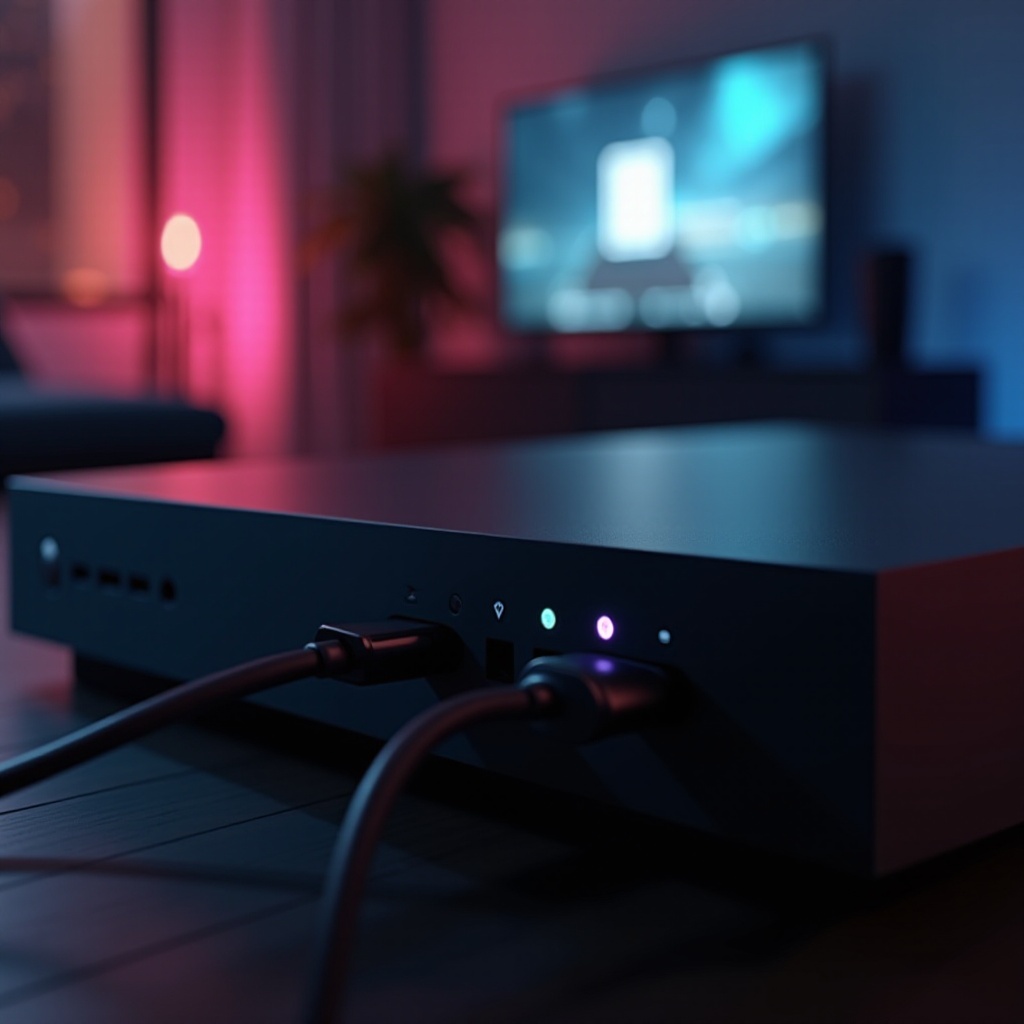
Recommended Accessories for Optimal Performance: Using high-quality HDMI cables and surge protectors helps maintain a stable environment for your console.
By adopting these preventive measures, you can extend the longevity of your console and enjoy uninterrupted gaming sessions.
Conclusion
Addressing an Xbox Series X screen going black can be straightforward with the proper steps. By systematically checking cables, updating software, and performing regular maintenance, most screen issues can be resolved. Continuous care of your console ensures it remains in good health, providing seamless, high-quality gaming experiences.
Frequently Asked Questions
Why does my Xbox Series X screen go black randomly?
Random black screens often stem from loose cables, incompatible settings, or outdated software. Regular checks and updates can help minimize these occurrences.
How can I prevent my Xbox Series X from encountering screen issues in the future?
Routine maintenance, regular software updates, and using quality accessories like HDMI cables can prevent future screen issues.
What should I do if none of the troubleshooting steps work?
If all troubleshooting fails, contact Xbox Support or seek professional repair services to diagnose and fix the problem.