Introduction
XM5 headphones are renowned for their outstanding sound quality and wireless ease, enhancing multimedia experiences across various laptop systems. Whether you’re jumping into a virtual meeting or enjoying your favorite playlist, knowing how to connect these headphones to your laptop is crucial. This guide walks you through connecting XM5 to popular laptop setups like Windows, macOS, and more.
Checking Your Laptop’s Compatibility
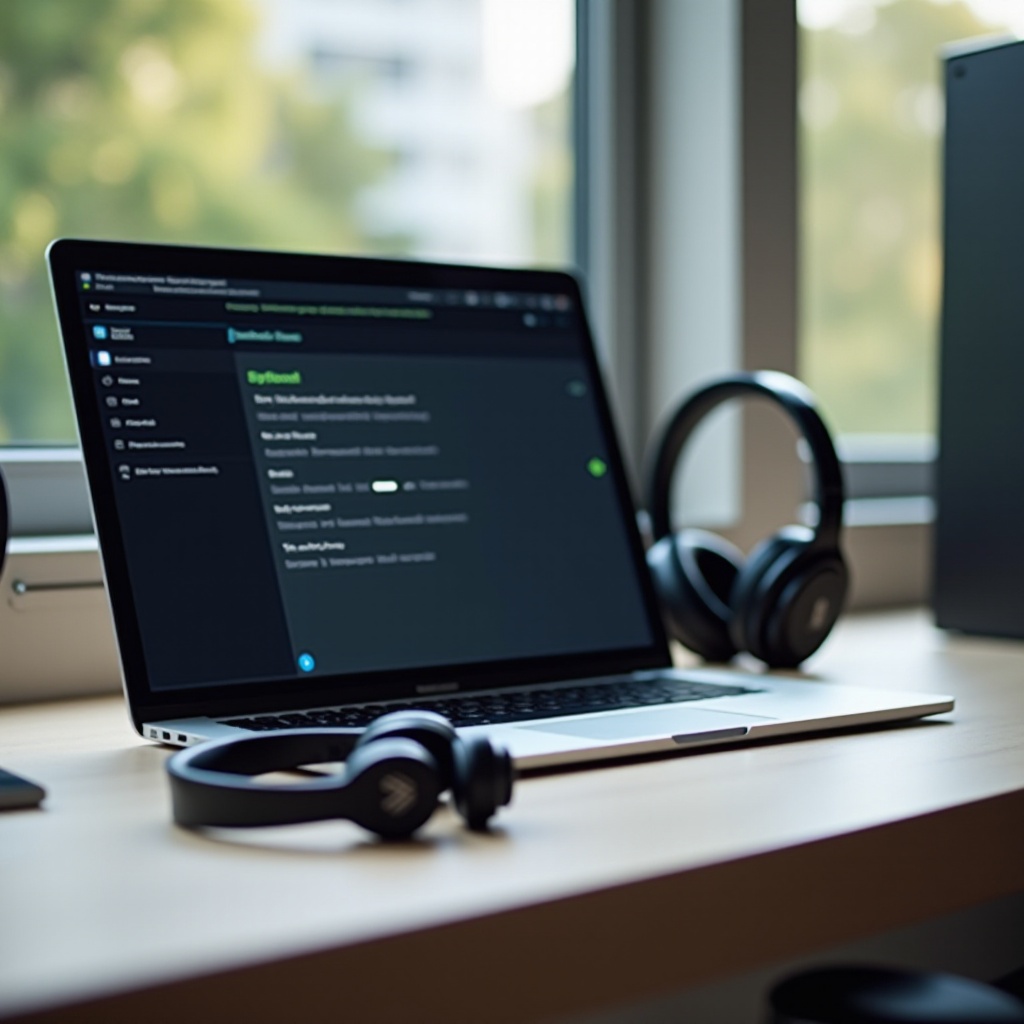
Before diving into the connection process, ensure your laptop supports Bluetooth. Most modern machines do, but confirming this within your device settings is essential to prevent unnecessary hurdles. Double-check that your operating system—be it Windows, macOS, or Linux—aligns with the XM5 headphones to avoid any potential connectivity hiccups, paving the way for a smoother connection.
Connecting XM5 to a Windows Laptop
For Windows users, the process of connecting XM5 headphones is straightforward:
- Power on your XM5 headphones and activate pairing mode by holding the relevant button until the indicator flashes.
- On your laptop, type ‘Bluetooth’ in the search bar and open ‘Bluetooth & other devices settings’.
- Switch Bluetooth on by toggling the settings.
- Click ‘Add Bluetooth or other device’, then select ‘Bluetooth’.
- When you see your XM5 headphones appear, select them.
- Follow any additional prompts to finish the connection.
If connections prove tricky, these troubleshooting tips may help:
– Ensure no other Bluetooth devices are nearby that might interfere.
– Update Bluetooth drivers through ‘Device Manager’.
– Restart your laptop and headphones to reset the connection pathways.
Connecting XM5 to a macOS Laptop
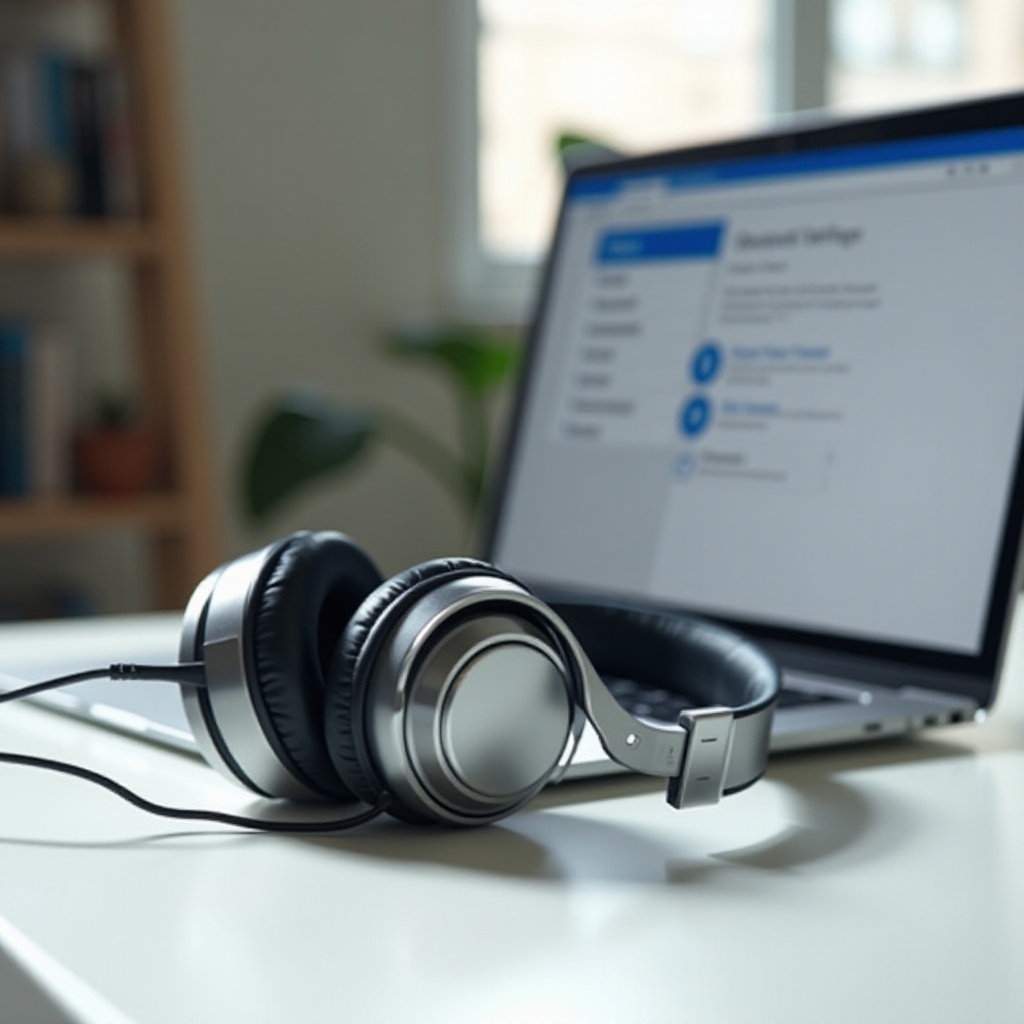
MacBook users can also enjoy a straightforward pairing process:
- Put your XM5 into pairing mode.
- Access the Apple menu and choose ‘System Preferences’.
- Select ‘Bluetooth’ and toggle it to ‘On’.
- Find your XM5 headphones in the list; click ‘Connect’.
- Once paired, your headphones should appear in available sound output devices.
For unresolved connection issues, try these tips:
– Toggle Bluetooth off and on within ‘System Preferences’.
– Keep macOS current with software updates that often enhance Bluetooth function.
– Reset the Bluetooth module by holding Shift + Option and clicking the Bluetooth icon in the menu bar.
Connecting via macOS is typically reliable, ensuring your audio sessions remain uninterrupted.
Additional Connection Methods
In instances where wireless connection stumbles, opting for a wired solution can be beneficial. This involves:
– Using a suitable AUX cable to connect your headphones directly to the laptop’s headphone jack.
– Selecting this option as it conserves battery life and maintains steady audio performance.
– Adjusting sound settings to switch from wireless to wired playback easily.
The reliability of a wired setup is invaluable, especially when precision and uninterrupted sound are paramount during critical tasks.
Optimizing Audio Performance
Once connected, optimizing your audio settings can further refine your listening experience:
– For Windows, right-click on the speaker icon, select ‘Playback devices’, and configure your sound settings. On macOS, navigate to ‘System Preferences’ > ‘Sound’.
– Keep audio drivers updated for the best possible sound quality.
– Disable noise-canceling features when not needed to conserve battery power.
By fine-tuning these settings, enjoy the full breadth and depth of audio that XM5 headphones offer, anytime and anywhere.
Conclusion
With clear, actionable steps outlined in this guide, connecting your XM5 headphones to any laptop configuration becomes a breeze. Covered methods cater to both wireless and wired preferences, and troubleshooting tips ensure you’re prepared for any eventuality, enabling you to relish premium audio quality and a seamless listening journey.
Frequently Asked Questions
How do I reset my XM5 headphones?
To reset your XM5, turn them off. Press and hold the power button and noise canceling button together for about 7 seconds. You’ll hear a reset tone.
Can XM5 headphones connect to multiple devices simultaneously?
XM5 headphones support multi-device pairing but can actively connect to one device at a time. Switch connections through each device’s Bluetooth settings.
What should I do if my laptop cannot detect my XM5 headphones?
Ensure the headphones are in pairing mode. Eliminate interference by turning off nearby Bluetooth devices. Restart your devices and consult troubleshooting steps if issues persist.