Introduction
USB ports play a crucial role in connecting external devices to your MacBook Pro, and their malfunction can significantly hinder your productivity. Understanding how to troubleshoot these issues is vital to restoring your device’s functionality. This guide will walk you through identifying and resolving problems associated with disabled USB ports, ensuring minimal disruption to your workflow.
Understanding the Issue
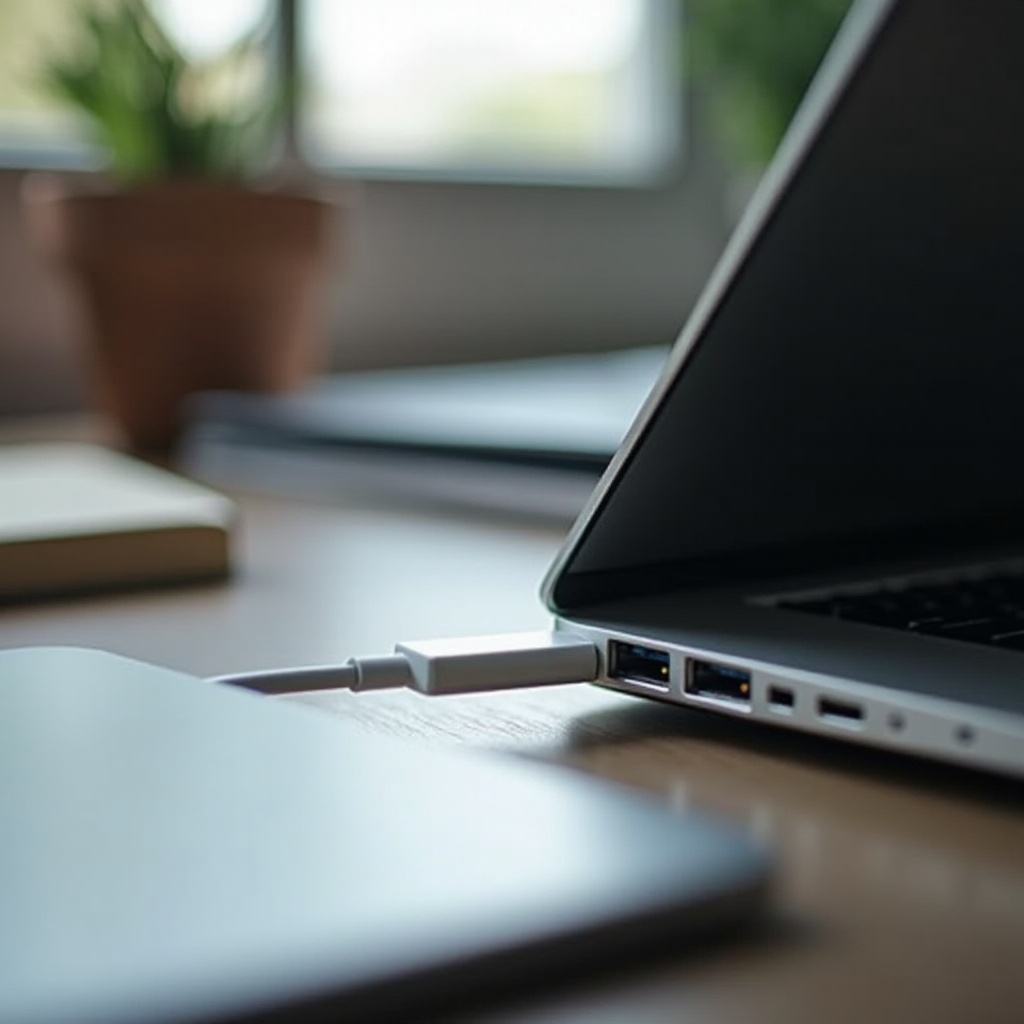
Before delving into solutions, it’s essential to grasp the nature of the problem and the potential causes. Recognizing the signs of disabled USB ports can help in implementing the right fixes. Typically, these ports show no response or fail to recognize attached devices, which can result from various software and hardware issues.
Signs of Disabled USB Ports
- Devices not being recognized by your MacBook Pro
- Lack of power to connected devices
- Frequent disconnection of USB devices
Identifying these signs promptly allows you to proceed with the appropriate troubleshooting steps.
Why USB Ports Get Disabled
Several factors can lead to USB port dysfunction, including:
– Software conflicts from recent macOS updates
– Physical damage or wear and tear
– Overloading ports with too many devices
Gaining insights into these causes aids in diagnosing and addressing the issues effectively.
Initial Troubleshooting Steps
Now that we know why USB ports might fail, let’s start with basic troubleshooting. These initial steps often rectify the problem without extensive effort, helping you get back to using your peripherals quickly.
Verify Physical Connections
- Check for any damage to the USB cable or devices.
- Inspect ports for debris or physical blockage.
- Experiment with different cables or devices to exclude the faulty peripherals.
Restart Your MacBook Pro
Restarting can resolve temporary glitches by refreshing the system. To restart your MacBook Pro:
1. Open the Apple menu and select ‘Restart.
2. Allow your device to fully reboot and check the ports again.
Run Apple Diagnostics
If the issue persists, use Apple Diagnostics to identify hardware problems:
1. Restart your Mac and immediately press and hold the ‘D’ key.
2. Follow the on-screen instructions to complete the diagnostics.
3. Record any error codes for reference.
If these steps don’t resolve the issue, more advanced solutions may be required.
Advanced Troubleshooting Techniques
Should basic troubleshooting not yield results, advanced methods are necessary. These techniques target deeper system functions to restore USB port functionality.
Reset the System Management Controller (SMC)
The SMC controls essential environmental functions and resetting it can fix hardware-related issues:
1. Shut down your MacBook Pro.
2. Plugin the power adapter.
3. On the left side of the built-in keyboard, press Shift-Control-Option, and the power button at the same time.
4. Release all keys, then press the power button to turn on your Mac.
Use the macOS Disk Utility
Address system file issues by using Disk Utility:
1. Open Disk Utility through Spotlight search.
2. Select your startup disk and click ‘First Aid.
3. Proceed with the disk repair by following the prompts.
Reset NVRAM/PRAM
Resetting NVRAM/PRAM can resolve configuration-related issues:
1. Shut down your Mac and then turn it back on.
2. Immediately press and hold Option-Command-P-R for about 20 seconds.
3. Release the keys and let the Mac boot normally.
These advanced solutions often solve systemic USB port issues, but if problems continue, consider looking into software and driver solutions.
Software and Driver Solutions
Considering software updates and compatibility can help solve issues stemming from system conflicts.
Update macOS and Drivers
- Open ‘System Preferences’ and choose ‘Software Update.
- Install available updates to ensure your system and drivers are current.
- Verify that all third-party software is up to date to avoid compatibility issues.
Check for Third-Party Software Issues
Some software can interfere with USB operations, so check for conflicts:
1. Identify and temporarily remove or disable recently installed software to test functionality.
2. Contact software developers for support if compatibility issues are suspected.
These steps can address the majority of software-induced USB port issues. However, persistent issues might indicate hardware problems.
Identifying Hardware Problems
Persistent problems after software troubleshooting point to potential hardware issues. Early identification and intervention can prevent complete failure.
Spotting Hardware Issues
Hardware issues may manifest as:
– Persistent failure despite performing all software checks
– Visible damage to USB ports
– Relevant error codes during diagnostics
When to Contact Apple Support
If hardware failure is suspected, professional assessment may be necessary:
1. Gather documentation of symptoms and diagnostics results.
2. Visit an authorized Apple service provider.
3. Discuss repair or replacement options with a certified technician.
Seeking professional help ensures a reliable and timely solution. In maintaining your MacBook Pro’s performance, proactive measures play an important role.
Proactive Maintenance Tips
Preventive strategies can avert future USB port issues, sustaining your device’s smooth operation.
Regular System Updates
- Schedule routine checks for new macOS updates and security patches.
- Keep third-party software updated to avoid future conflicts.
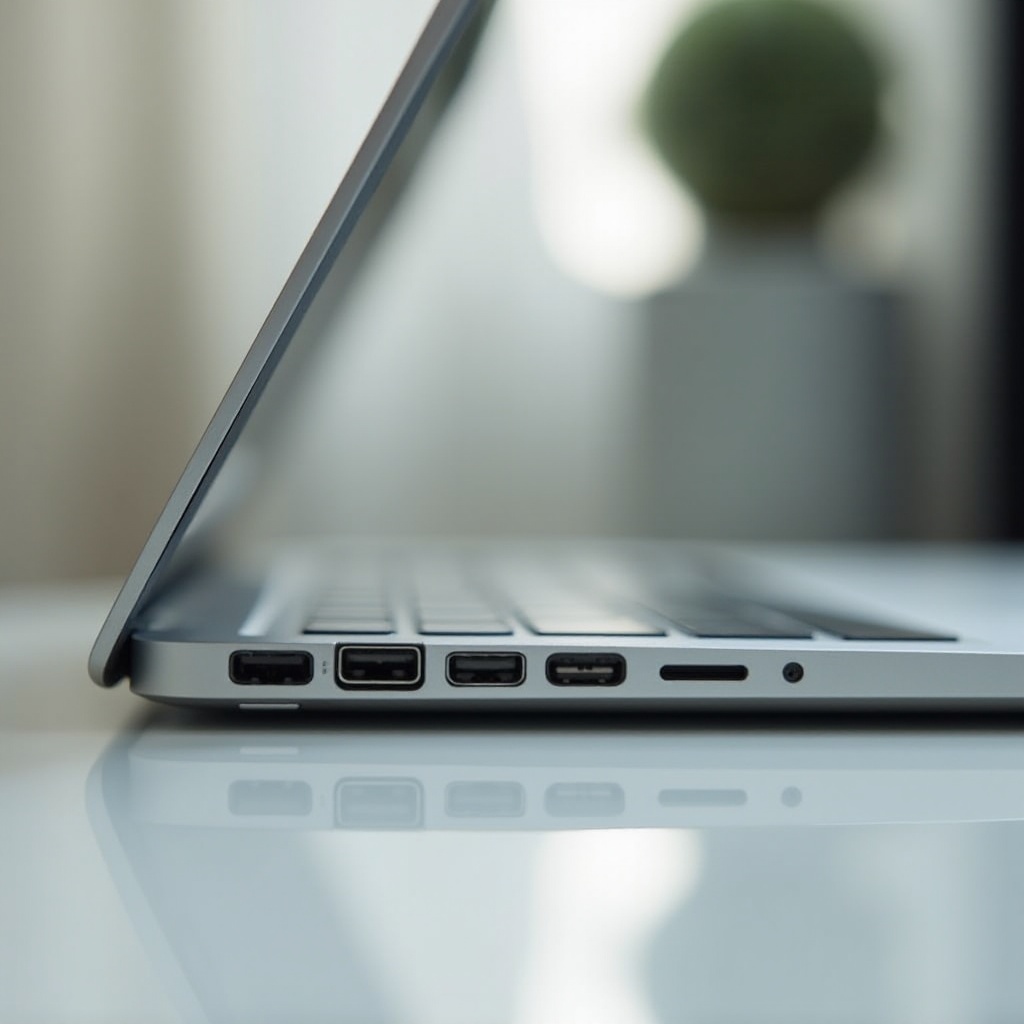
Proper Care of USB Ports
- Handle cables gently to avoid damaging ports.
- Regularly clean ports to remove dust and debris.
By implementing maintenance practices, you significantly reduce the risk of USB port problems, ensuring your MacBook Pro’s reliability and efficiency.
Conclusion
By following this guide, you can restore your MacBook Pro’s USB port functionality swiftly and effectively. Addressing both software and hardware aspects ensures continued productivity and minimal disruptions.
Frequently Asked Questions
Can I fix USB port issues on my own?
Often, basic troubleshooting steps can resolve these issues. If advanced solutions are required, they can also be performed by users with careful attention.
What if my USB ports are still not working after trying all the fixes?
If issues persist, it may be necessary to contact Apple Support as hardware damage could require professional intervention.
How can I prevent USB port issues on my MacBook Pro?
Regularly updating your system, handling cables carefully, and keeping ports clean can help avert USB port problems.