Introduction
Keeping your Surface Pro keyboard clean is essential for maintaining its performance and extending its lifespan. Dust and grime can accumulate, affecting key sensitivity and functionality. Regular cleaning enhances your device’s aesthetic and guarantees it operates smoothly. This guide provides step-by-step instructions to help you keep your keyboard spotless and efficient.

Tools and Materials Needed
Before diving into the cleaning process, ensure you have the right tools and materials:
– A soft, lint-free microfiber cloth
– Isopropyl alcohol (70% or higher)
– Compressed air canister
– Cotton swabs
– A soft-bristle brush
Using appropriate materials prevents damage and ensures thorough cleaning.
Preparing Your Surface Pro for Cleaning
Preparation is key to effective cleaning. Start by powering off your Surface Pro to avoid short-circuiting. Next, carefully detach the keyboard to protect the screen from accidental liquid exposure. Proper preparation supports a successful cleaning session without risks to your device.
Step-by-Step Cleaning Process
Cleaning the Keys
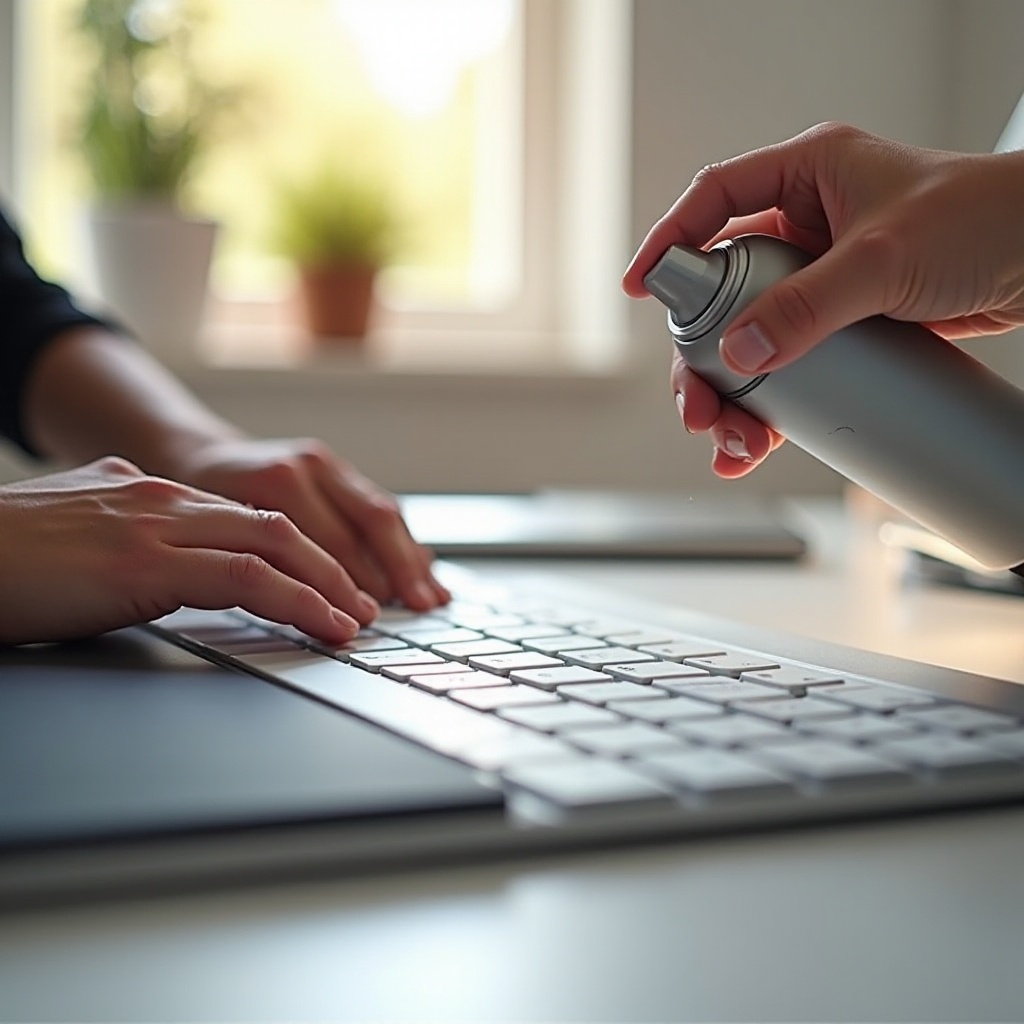
- Dust and Debris Removal: Use a can of compressed air to blow dust and debris from between the keys. Hold the canister at an angle to avoid forcing debris deeper.
- Deep Cleaning Keys: Dampen a microfiber cloth with isopropyl alcohol. Gently wipe the surface of each key to remove oils and grime, ensuring the cloth isn’t too wet.
Cleaning Beneath the Keys
- Remove Keys (if necessary): Depending on your Surface Pro model, keys may be removable. Consult your manual for instructions.
- Clean Underneath: Use a cotton swab dipped in isopropyl alcohol to gently clean beneath the keys. This helps eliminate hidden dirt and bacteria.
Cleaning the Surface Area
- Wiping External Surfaces: Lightly dampen another microfiber cloth with isopropyl alcohol and clean the keyboard’s exterior. Ensure the cloth is not wet enough to drip liquid.
- Safe Cleaning Agent Usage: Always use cleaning agents sparingly to prevent damage to electronic components.

Addressing Common Keyboard Issues
After a thorough cleaning, you may encounter lingering issues:
– Sticky Keys: Apply a small amount of isopropyl alcohol to a cotton swab and clean around sticky keys to loosen debris.
– Persistent Stains or Residue: Use a gentle, damp cloth with cleaning solution and rinse it afterward to avoid residue.
These solutions help resolve common problems, ensuring your keyboard remains fully functional.
Maintenance and Long-term Care
Preventive maintenance is crucial to keep your Surface Pro keyboard in top condition. Establish a regular cleaning routine:
1. Daily Habits: Wipe your keyboard with a dry microfiber cloth each day to remove oils and dust.
2. Weekly Cleaning: Use compressed air weekly to prevent dust accumulation.
3. Deep Clean Monthly: Conduct a thorough cleaning monthly using this guide’s steps.
These habits will extend your keyboard’s life, maintaining performance and hygiene.
Conclusion
Maintaining a clean Surface Pro keyboard is key to enhancing your device’s performance. By following these cleaning steps and incorporating regular maintenance habits, you’ll ensure your keyboard stays in excellent condition. Commit to this routine and enjoy a superior typing experience.
Frequently Asked Questions
How often should I clean my Surface Pro keyboard?
For optimal performance, clean your keyboard weekly and conduct a deep clean monthly.
What cleaning products are safe for my keyboard?
Use isopropyl alcohol, microfiber cloths, and compressed air. Avoid harsh chemicals to prevent damage.
Can I remove all the keys from my Surface Pro keyboard for cleaning?
Some Surface Pro models allow key removal, but check your manual first. Handle keys gently to avoid damage.